













































What Are UTM Parameters? How to Use Them in Google Ads and Meta Ads
Learn what UTM Parameters are and how to use them in Google Ads and Meta Ads. Track ad campaigns, measure results, and understand where your traffic comes from.
Are you running Google Ads, Meta Ads, or email campaigns but unsure which one is driving the best results?
Tracking website visits alone doesn't reveal which campaigns generate valuable traffic, leads, or conversions. Accurate tracking helps you understand which campaigns are delivering the highest value.
One of the simplest ways to achieve this is by using UTM parameters. These tracking tags help marketers identify traffic sources, measure marketing performance, and compare results across different channels. Understanding their purpose makes it easier to track and optimize your marketing efforts.
What Are UTM Parameters and Why Are They Important?
UTM (Urchin Tracking Module) parameters are small pieces of text added to the end of a URL to track where website visitors come from. They identify the campaign, traffic source, and marketing channel responsible for each visit, helping marketers measure campaign performance more accurately.


Key benefits of UTM parameters include:
-
Measure the return on investment (ROI) of marketing campaigns.
-
Compare the performance of different marketing channels.
-
Generate detailed reports in Google Analytics 4 (GA4).
-
Make data-driven decisions to improve future campaigns
Types of UTM Parameters and Their Purpose
There are five standard UTM parameters used to track digital marketing campaigns. The first three are essential for basic tracking, while the remaining two provide additional insights for keywords and ad variations.
|
UTM Parameter |
What It Tracks |
Example Value |
|
utm_source |
The platform or publisher sending traffic |
google, facebook, instagram, newsletter |
|
utm_medium |
The marketing channel type |
cpc, paid-social, email, organic |
|
utm_campaign |
The specific campaign name |
summer-sale-2026, digital-marketing-course-launch |
|
utm_term (Optional) |
Paid search keyword (Google Ads) |
digital marketing course |
|
utm_content (Optional) |
Ad variant, creative, or link differentiator |
carousel-ad-v1, static-image-ad |
Together, these UTM parameters provide a complete view of campaign performance. Consistent naming ensures accurate tracking and reporting in Google Analytics 4
How Do UTM Parameters Work?
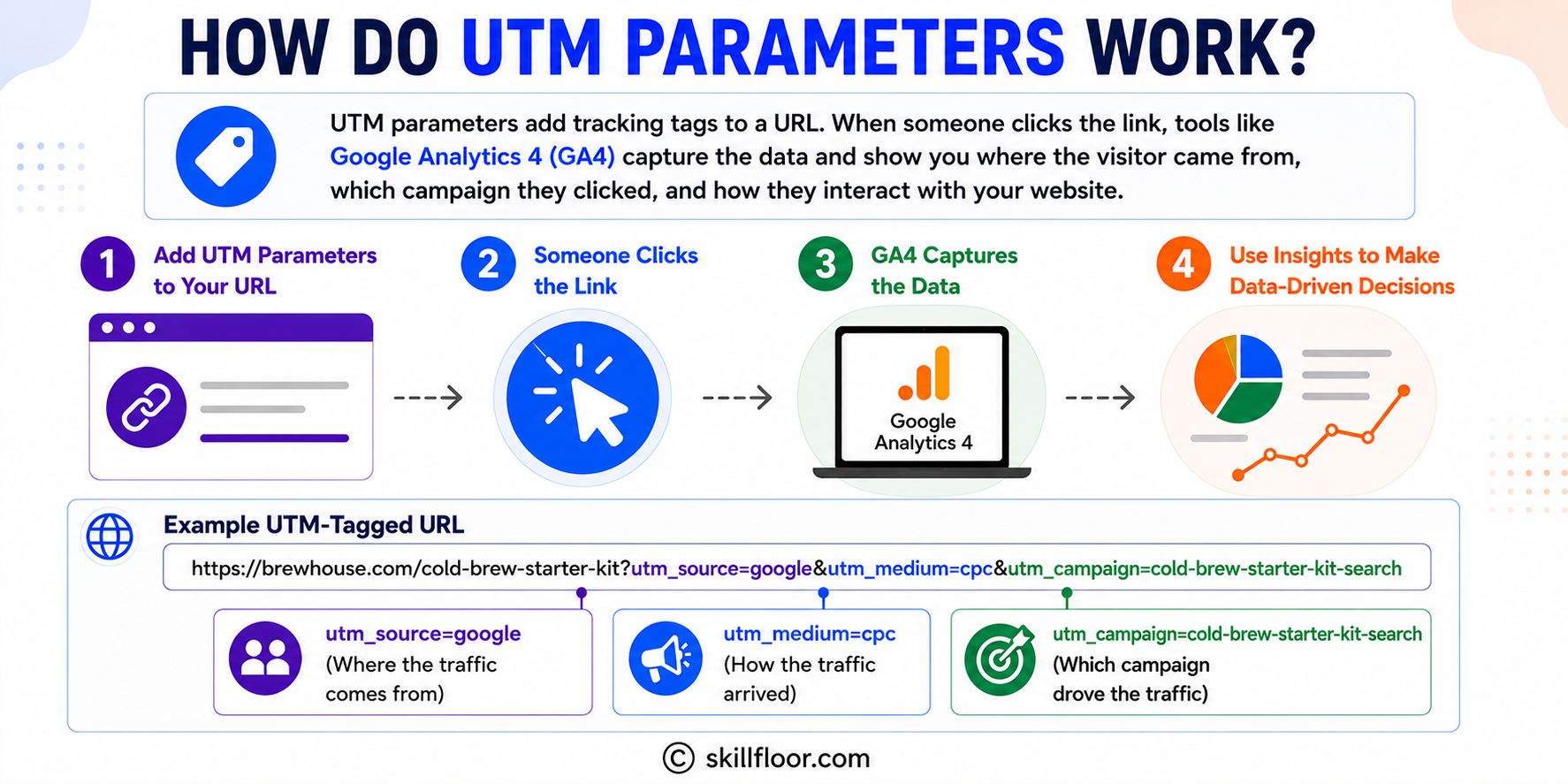
UTM parameters work by adding small tracking tags to the end of a URL. When a user clicks the tagged link, tools like Google Analytics 4 (GA4) capture these parameters and record where the visitor came from, which campaign they clicked, and how they interacted with your website.
For example, if someone clicks the URL below, Google Analytics recognizes that the visitor came from a Google Ads campaign:
https://brewhouse.com/cold-brew-starter-kit?utm_source=google&utm_medium=cpc&utm_campaign=cold-brew-starter-kit-search
This allows marketers to accurately track campaign performance, compare different traffic sources, and make data-driven marketing decisions.
Why UTM Tracking Matters for Google Ads and Meta Ads
Google Ads and Meta Ads each have their own reporting dashboards, showing metrics such as clicks, impressions, and conversions within their respective platforms. The problem is that neither platform shows you the full picture of what a visitor did after landing on your site, especially if they browsed multiple pages, came back later, or converted through a different channel first.
UTM parameters solve this by feeding consistent, structured data into Google Analytics, so you can see:
-
Which platform (Google Ads vs Meta Ads) drives more qualified traffic, not just more clicks
-
Which specific campaigns and ad sets contribute to actual conversions, not just landing page views
-
Whether a keyword-driven search ad or an interest-based social ad brings better-quality visitors
-
How traffic from ads compares to organic search, email, or direct visits, in one unified report
This is especially useful once you are running campaigns across more than one platform at the same time, which is the norm for most performance marketing setups.
How to Build a UTM Tracking URL (Step by Step)
You do not need any special software to create a UTM URL. The most common method is Google's own Campaign URL Builder.
Step 1: Start with your destination URL: This is the page you want the ad to send people to, for example, a product page or homepage.
https://brewhouse.com/cold-brew-starter-kit
Step 2: Add your campaign source, medium, and name: Fill in utm_source, utm_medium, and utm_campaign based on where the traffic is coming from and what campaign it belongs to.
Step 3: Add optional term and content values if relevant: Use utm_term for the keyword (mainly for search ads) and utm_content when you are running more than one ad, banner, or link and want to tell them apart.
Step 4: Generate and test the final URL: Paste the finished URL into a browser to confirm it loads correctly, then check Google Analytics Realtime reports after a test click to confirm the tags are being picked up.
A completed UTM URL for a Meta Ads campaign might look like this:
https://brewhouse.com/cold-brew-starter-kit?utm_source=facebook&utm_medium=paid-social&utm_campaign=summer-cold-brew&utm_content=carousel-ad-v1
Using UTM Parameters in Google Ads
Google Ads has its own native tracking system called auto-tagging, which appends a gclid (Google Click ID) parameter to your URL automatically. This is what powers accurate conversion and cost data inside Google Ads reports and syncs cleanly with Google Analytics when linked correctly.


Because of this, many beginners assume UTM parameters are unnecessary in Google Ads. In practice, most experienced marketers use both:
-
Auto-tagging (gclid) for accurate cost, click, and conversion data inside Google Ads and for Google Analytics' own Google Ads reports
-
Manual UTM parameters for consistent campaign naming across every platform, including non-Google channels, in one unified Analytics view
How to add UTM parameters in Google Ads
-
Open your campaign, ad group, or ad in Google Ads
-
Go to the URL options or Final URL suffix field, depending on where you are adding it (campaign-level or ad-level)
-
Add your UTM string in the Final URL suffix field, for example: utm_source=google&utm_medium=cpc&utm_campaign=cold-brew-starter-kit-search
-
Save and preview the final URL to confirm it renders as expected
Using the Final URL suffix field (instead of editing each ad's URL individually) lets you update tracking parameters at the campaign or account level without touching each ad.
Using UTM Parameters in Meta Ads
Meta Ads (Facebook and Instagram) does not have a direct equivalent to Google's valid auto-tagging for third-party analytics, which makes manual UTM tagging more important on this platform.
How to add UTM parameters in Meta Ads Manager
-
Open Ads Manager and go to the ad set or ad level
-
Scroll to the Destination section and find the URL Parameters field
-
Enter your UTM string, for example:
utm_source=facebook&utm_medium=paid-social&utm_campaign=cold-brew-starter-kit-july&utm_content={{ad.name}} -
Use Meta's dynamic parameters, such as {{campaign.name}}, {{adset.name}}, or {{ad.name}}, so values populate automatically instead of being typed manually for every ad
Dynamic parameters are worth learning early. They remove the risk of typos and mismatched campaign names across dozens of ads, which is one of the most common reasons UTM data becomes messy over time.
Real Campaign URL Examples
|
Scenario |
Sample Tagged URL |
|
Google Ads search campaign |
brewhouse.com/cold-brew-starter-kit?utm_source=google&utm_medium=cpc&utm_campaign=cold-brew-starter-kit-search&utm_term=cold+brew+starter+kit |
|
Meta Ads Instagram feed ad |
brewhouse.com/cold-brew-starter-kit?utm_source=instagram&utm_medium=paid-social&utm_campaign=cold-brew-starter-kit-july&utm_content=feed-video-ad |
|
Email newsletter link |
brewhouse.com/blog/cold-brew-guide?utm_source=newsletter&utm_medium=email&utm_campaign=july-digest |
Google Ads Auto-Tagging vs Manual UTM Tagging
|
Factor |
Auto-Tagging (gclid) |
Manual UTM Parameters |
|
Where it works |
Google Ads only |
Any platform: Google Ads, Meta Ads, email, affiliates |
|
Setup effort |
Automatic, no setup |
Requires manual tagging or dynamic parameters |
|
Best for |
Precise Google Ads cost and conversion data |
Cross-platform comparison in one Analytics view |
|
Risk of error |
Low, handled by Google |
Higher, depends on naming consistency |
Most performance marketing teams use both together rather than choosing one over the other. Auto-tagging preserves the accuracy of Google Ads' own reports, while UTM parameters keep all channels comparable in Google Analytics.
Common UTM Tracking Mistakes to Avoid
-
Inconsistent naming: using "Facebook" in one campaign and "facebook" in another creates duplicate, fragmented rows in reports, since UTM values are case-sensitive
-
Tagging internal links: adding UTM parameters to links within your own site can incorrectly reset session data and break attribution
-
Overwriting Google Ads auto-tagging: manually adding a UTM string that conflicts with gclid can cause data mismatches between Google Ads and Analytics
-
Skipping utm_content on multi-ad campaigns: without it, you cannot tell which specific creative or ad variant is performing best
-
Forgetting to test the URL before launch: a broken or malformed UTM URL can send paid traffic to a page without any tracking at all
Best Practices for UTM Tracking
-
Use lowercase letters throughout, since UTM values are case-sensitive and inconsistent casing splits your data
-
Use hyphens instead of spaces (cold-brew-starter-kit-july, not cold brew starter kit july)
-
Keep a shared naming convention document or spreadsheet if more than one person creates campaigns
-
Use a consistent utm_medium vocabulary across the team, such as cpc, paid-social, email, and referral, rather than letting each person invent their own terms
-
Review your Analytics Acquisition reports monthly to catch naming drift early, before months of data become inconsistent
If you're interested in mastering Google Ads, Meta Ads, and marketing analytics, Skillfloor provides practical training through live projects, expert mentorship, and placement support.
The Certified Performance Marketing Specialist course helps you master performance marketing strategies, advertising platforms, GA4, and campaign optimization for real-world success.
FAQ’s:
1. What are UTM parameters in simple terms?
UTM parameters are tags added to a URL that tell your analytics tool where a website visitor came from and which campaign, ad, or link they clicked.
2. Do I need UTM parameters if I already use Google Ads auto-tagging?
Auto-tagging works well for Google Ads reporting. UTM parameters are useful when you want to compare Google Ads traffic with Meta Ads, email, and other marketing channels in Google Analytics 4 (GA4).
3. Are UTM parameters case-sensitive?
Yes. Google Analytics treats "Facebook" and "facebook" as two different values, which is one of the most common reasons campaign data looks fragmented.
4. Can UTM parameters hurt my website's SEO?
No. UTM parameters do not impact SEO when used for ads, emails, or social media campaigns. However, avoid using them on internal website links, as they can lead to inaccurate analytics tracking.
5. What tool should I use to create UTM URLs?
Google's Campaign URL Builder is the most widely used free tool. Meta Ads Manager also supports dynamic UTM parameters directly inside the ad setup screen.
UTM parameters turn scattered clicks into clear, comparable data showing exactly which platform, campaign, and ad is actually driving results, rather than relying on disconnected reports from Google Ads and Meta Ads. A consistent naming convention, set early, is what makes this data trustworthy rather than a mess to clean up later. Combined with Google Ads auto-tagging, UTM tracking gives you both platform-level precision and a unified, cross-channel view in GA4. Get the tagging habit right once, and every future campaign report becomes faster to build and easier to trust.
Digital Marketing Course in Ahmedabad | Digital Marketing Course in Bangalore | Digital Marketing Course in Chennai | Digital Marketing Course in Coimbatore | Digital Marketing Course in Hyderabad | Digital Marketing Course in Pune | Digital Marketing Course in Delhi | Digital Marketing Course in Mumbai
Digital Marketing Courses in Other Locations in India
Ahmedabad | Aurangabad | Bangalore | Bhilai | Bhopal | Bhubaneshwar | Chandigarh | Chennai | Cochin | Coimbatore | Dehra Dun | Delhi | Faridabad | Ghaziabad | Gorakhpur | Guntur | Gurgaon | Guwahati | Hyderabad | Jaipur | Kanpur | Khammam | Kolkata | Lucknow | Madurai | Mumbai | Mysore | Nagpur | Noida | Patna | Pondicherry | Pune | Ranchi | Shimoga | Surat | Thane | Thiruvananthapuram | Tiruchirappalli | Tirupati | Vadodara | Visakhapatnam | Warangal | Jalandhar | Jodhpur | Indore | Durgapur | Jamshedpur | Dhanbad | Kota | Karnal | Udaipur | Amritsar | calicut | Nashik | Ludhiana | varanasi | thrissur | Mangalore | Raipur |